
PDF Accessibility for Higher Education, One Whole Course at a Time
CampusMind handles PDF accessibility at the course level, pulling whole courses out of your LMS and remediating them in batches. Your team's hours go to reviewing and approving, while the AI does the rebuilding.
Checked against WCAG 2.1 AA
The problem
Students shouldn't have to ask for an accessible PDF.
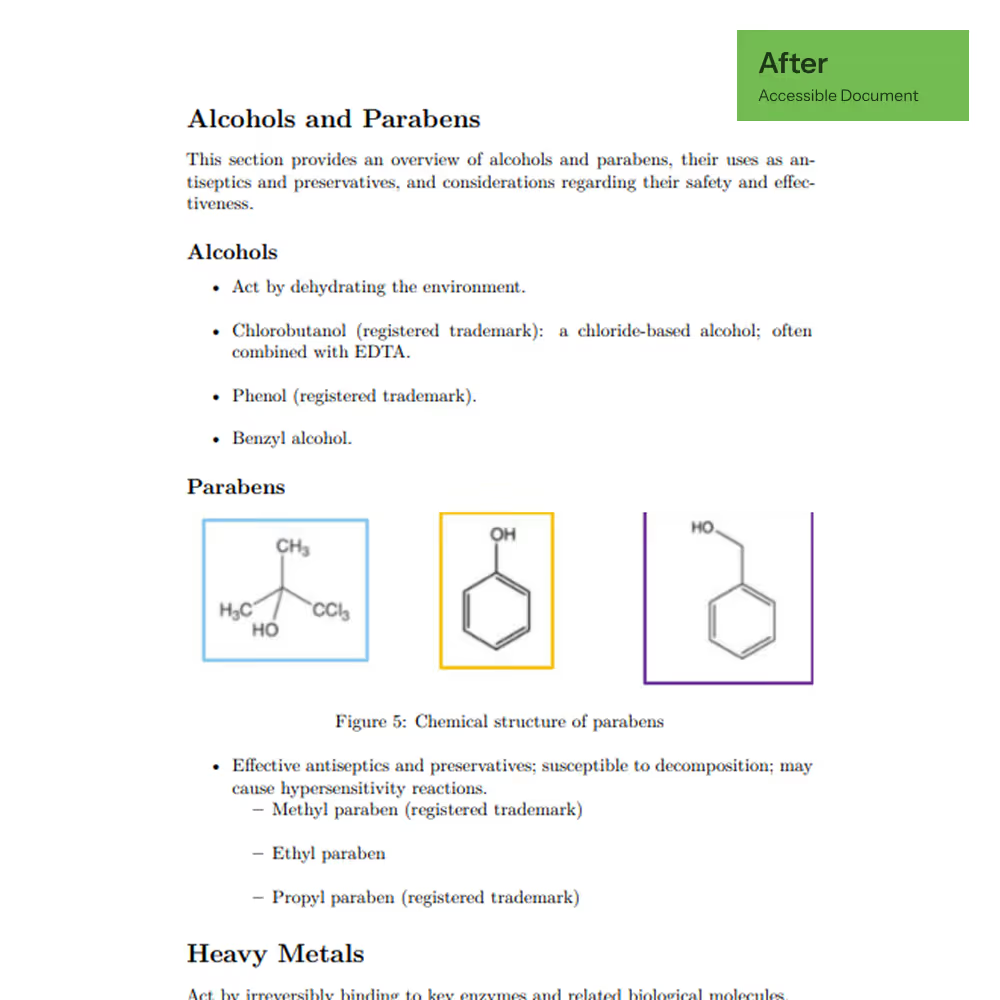
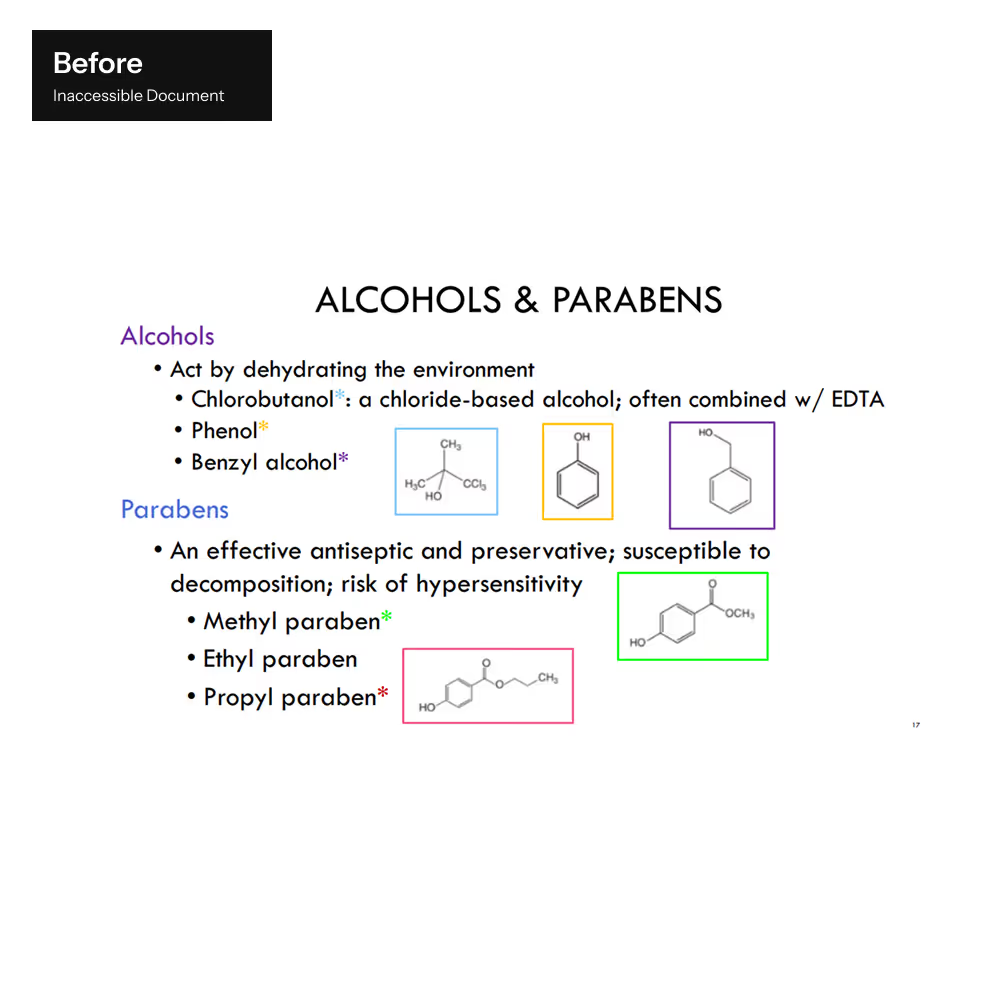
Most course PDFs were never tagged, so a screen reader can't make sense of them. Fixing them by hand is slow, and a small team can't keep up with a whole campus. AI PDF remediation handles most of the work, and staff approve each file.
CampusMind's AI does most of the remediation. Your team still approves every file, and the edge cases are flagged so they get attention first.
For CIOs and accessibility leaders
See where your whole campus stands.
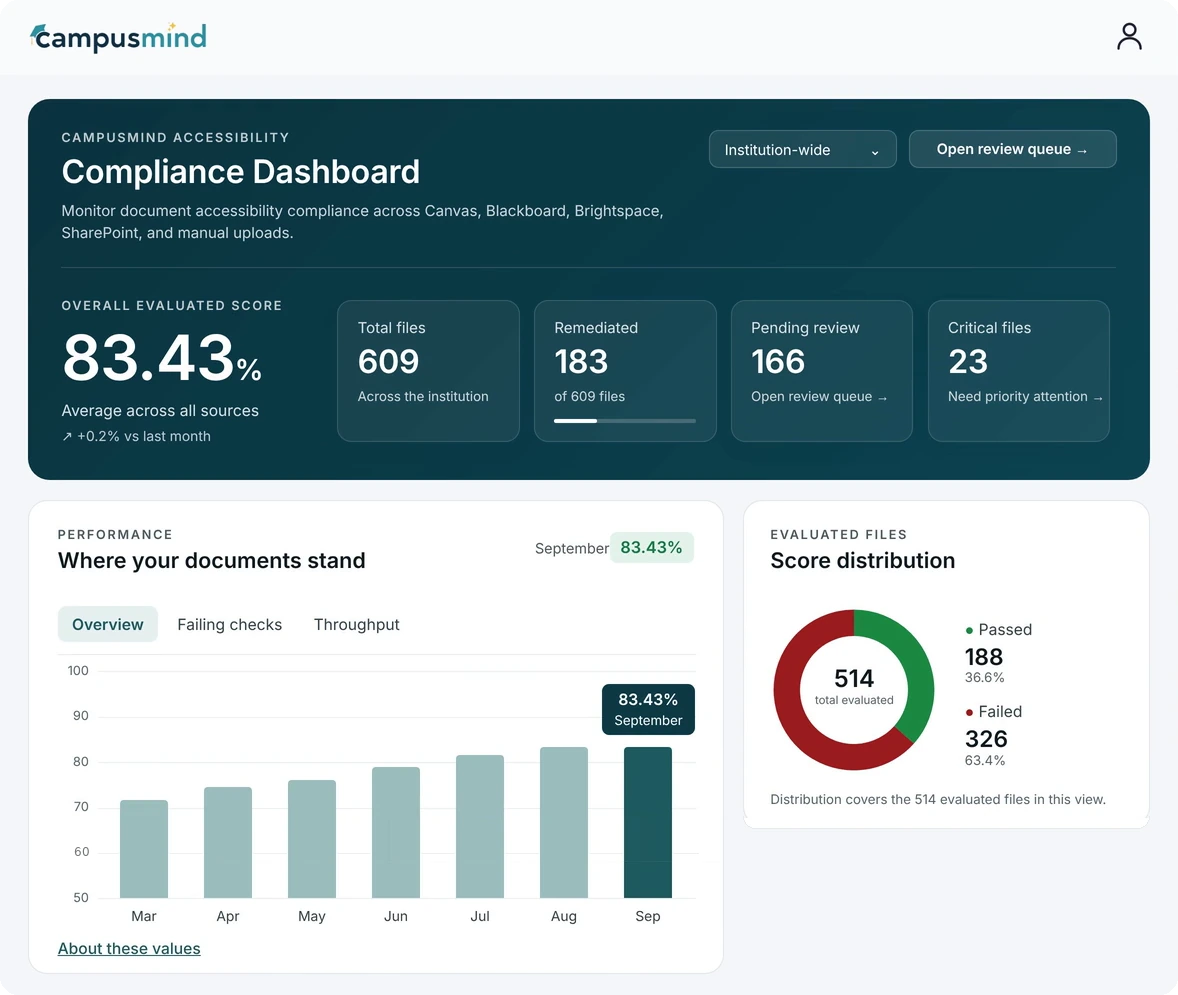
One campus-wide score for PDF accessibility for higher education teams. Every batch feeds it, so you can see what's fixed, what's waiting on review, and what still needs attention.
One campus-wide score
Every LMS and upload in one view, with files remediated, pending review and critical.
Progress month by month
Watch the score climb and see how many evaluated files pass.
See it in action
Follow one PDF through remediation.
In about a minute, watch a PDF move through the remediation loop and see what your team would see at each step.
01 · Courses and batches
Pull in a whole course, or build your own batch.
Bulk PDF remediation starts with a whole course pulled straight from your LMS. Or group files into batches by document type, like syllabi, slide decks, scanned readings or forms, and each batch gets scanned for its accessibility score first.
Whole courses, straight from your LMS
Canvas, Blackboard, Brightspace or SharePoint, with no downloading and re-uploading.
Batches by document type
Group similar files so each batch runs with the rules that suit it.
02 · Batch rules
Set the rules once for the whole batch.
Batch PDF remediation with one rule set, from Preserve Layout to Full Reconstruction. Give each batch the approach its documents need, and every file in it gets the same rules.
Preserve Layout (Auto-Tag Only)
- Accessibility tag structure
- Screen reader reading order
- Improved heading hierarchy
- Structured lists and tables
Full Accessibility Reconstruction
- Accessibility tag structure
- Improved heading hierarchy
- Table structure and heading correction
- Captions for images and diagrams
- Color contrast improvements
Remediation options
Keep existing tags
Update the tags already in the file
Email notification
Get an email when the batch finishes
Advanced output formats
Experimental
Processing estimate
About 1 minute per file
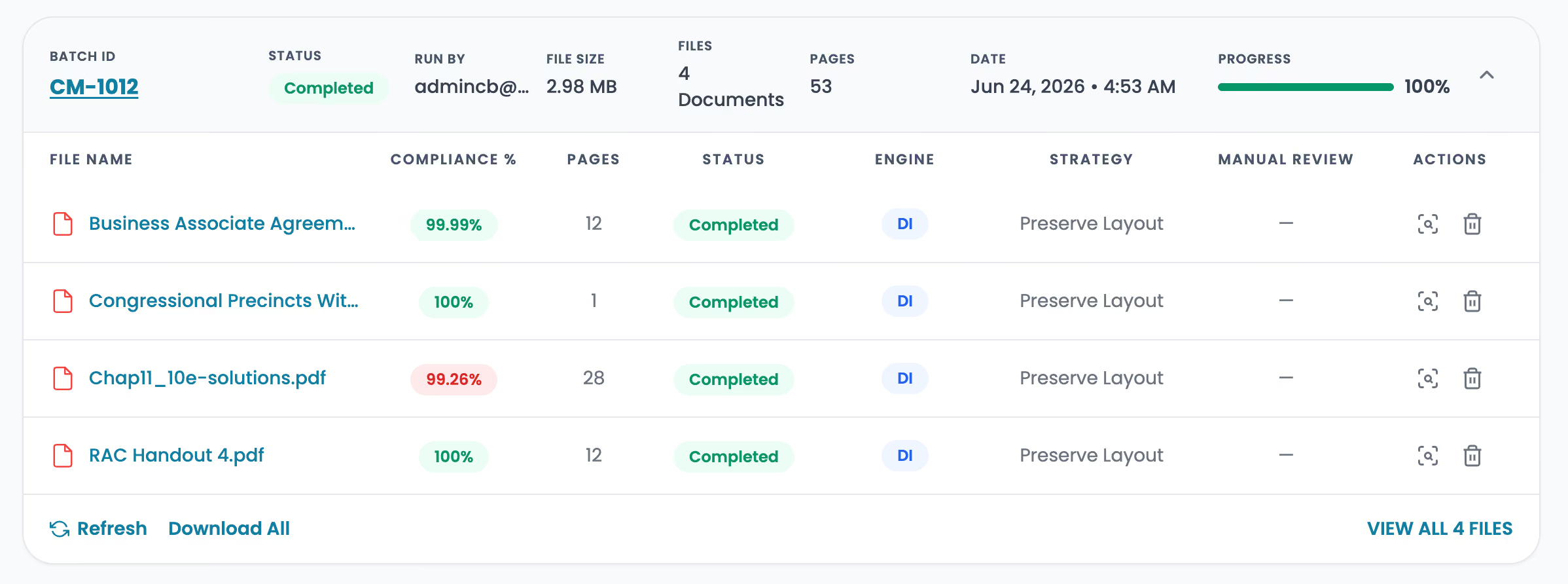
03 · Remediate
Hand off a whole course and get on with your day.
PDF remediation runs in the background, at about a minute per file, and each file returns with its own compliance score.
04 · Review
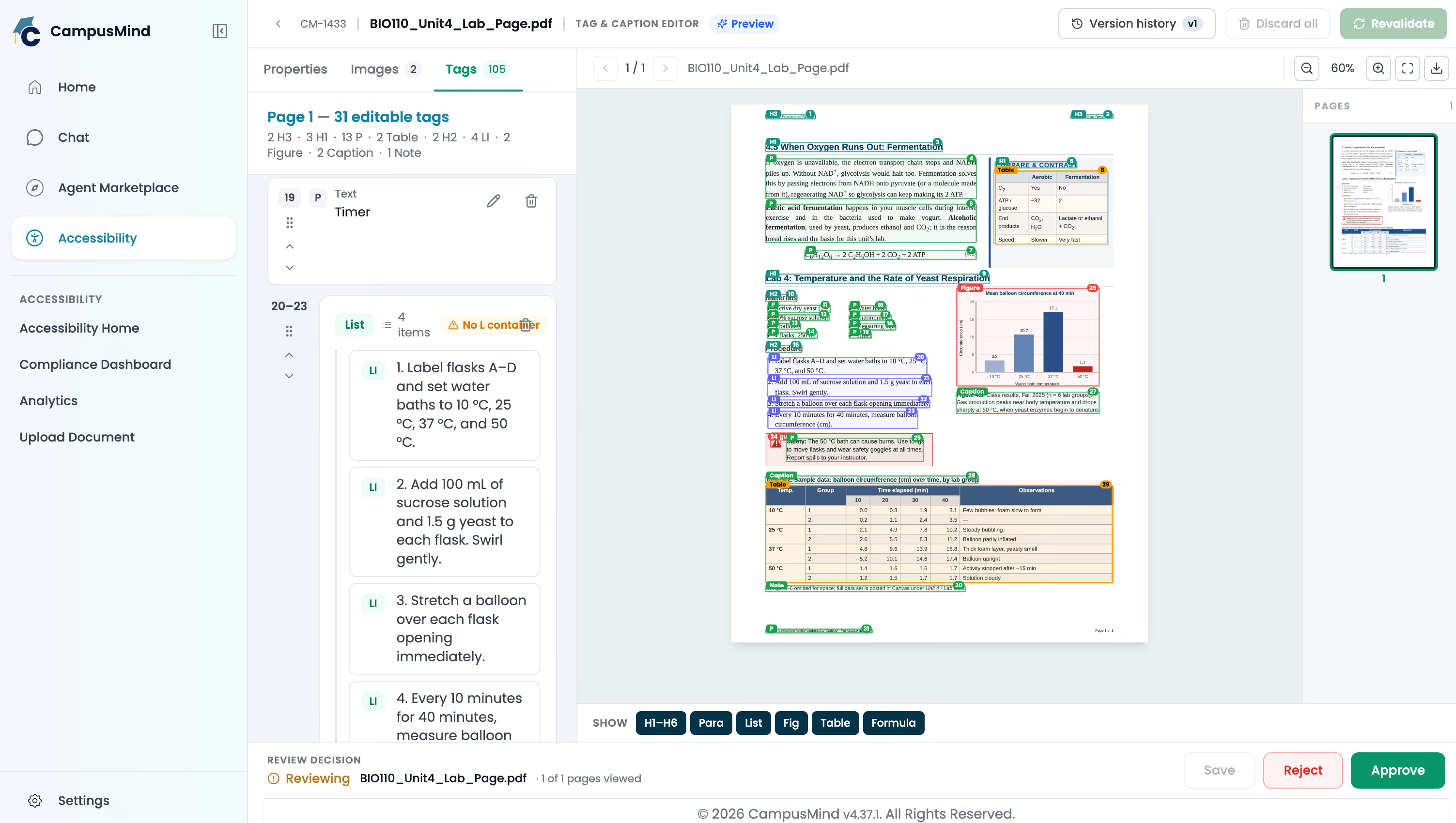
Your team checks every tag before a student sees it.
The AI does the first pass. Your reviewers approve the last one.
Every fix, next to the page
Anything the AI got wrong takes one edit to correct.
Every edit saved as a version
Nothing is overwritten, and each file is rechecked before approval.
05 · Send it back
Approved files go straight back to where they came from.
Each file lands in the same course or folder in Canvas, Blackboard, Brightspace or SharePoint. No downloading and re-uploading.
1 · Approved by your team
Syllabus_Fall2026.pdf
6 pages · 100% compliant
2 · Back in the course
Canvas · Week 1 module
Intro to Psychology
Security and compliance
Ready for your security review.
When you're sending whole courses through a system at once, what your security office checks for is what CampusMind is built to meet.
Institutional data, total control
Your files stay under your institution’s control. No open models and no third-party sharing.
Built on Microsoft Azure
Hosted on Azure and designed to meet US higher education standards.
A record for every file
Each approval has its compliance report and version history behind it, however large the batch was.
SOC 2
Audited security controls
HECVAT
Completed higher ed security assessment
TX-RAMP
Texas cloud security certification
FERPA
Compliant handling of student records
VPAT
Published conformance report for the platform
WCAG 2.1
Level AA is the target for the platform and every remediated file
Customer story
What accessibility teams are saying.
The tools we’ve tried before didn’t give us the control we needed.
With CampusMind, there is potential to not only reduce our workload but also make our PDFs fully accessible in almost no time.
The ability to clean up complex layouts, keep page flows intact, and ensure everything is compliant has been a game-changer for us.

Sean Kugler
Digital Accessibility Analyst, Northern Arizona University
Questions accessibility teams ask first
Straight answers.
Remediation targets WCAG 2.1 AA, and every file is checked as a WCAG 2.1 AA PDF. The compliance report lists each rule, so you can see exactly what passed.
Preserve Layout leaves the visual design untouched and fixes the structure underneath. Full Accessibility Reconstruction can adjust headings, tables, captions and contrast when tagging alone isn't enough.
Yes. Your team checks every file and approves it, or fixes what the AI missed and then approves it. Edge cases are flagged so they get attention first. You can also scan a course first and decide what to remediate afterward.
Canvas, Blackboard, Brightspace and SharePoint, plus direct upload for PDFs stored anywhere else. A whole course can run as one batch.
About a minute per file. There’s no limit on how many files a batch can hold, and batches run in the background. Edge cases are flagged so your reviewers can start with them.
No. CampusMind Accessibility is built for PDF remediation. Web content and captioning need a different tool.
Start with the published PDFs people use most. CampusMind pulls whole courses from Canvas, Blackboard, Brightspace or SharePoint and remediates them in batches to WCAG 2.1 AA. Automated tagging handles the repetitive work, and your team reviews and approves every file before it goes back to the course. One campus-wide score shows what’s fixed and what’s waiting on review.
Yes. Scanned readings go into a batch like any other document type. Anything that needs a closer look is flagged first, so your reviewers see it before they approve the file.
The one that fits how your campus already works. Look for a tool that:
- pulls files straight from your LMS so faculty don’t re-upload them
- has a person review every file before it’s published
- shows compliance across every department in one place
CampusMind was shaped with accessibility practitioners with disabilities and experienced accessibility directors, and our SOC 2, HECVAT, VPAT and TX-RAMP documentation is ready for your IT review.
See how our AI remediates your own PDFs.
Upload a PDF and get it back remediated, with a compliance report that shows every fix.