Bulk PDF Remediation Inside Canvas: What to Look For

Most of the accessibility problems in a Canvas course live in the files instructors upload, the PDFs and slide decks students open every week. Fixing them one at a time does not scale, so the work runs in batches: inventory what is in use, sort it, remediate it in bulk with a person approving each file, and put it back where students find it. This post covers what to look for at each step, including the part most guides skip: making sure a fixed file stays fixed once it is back in Canvas.
Key Takeaways
- The DOJ's April 2026 interim final rule moved the Title II deadlines to April 26, 2027 for public entities serving 50,000 or more people and April 26, 2028 for smaller ones. The standard is still WCAG 2.1 AA, and course content is covered.
- Most of the accessibility problems in a Canvas course are in the PDFs, Word documents and PowerPoints uploaded to it, so the plan starts with the files.
- Montgomery County, Maryland remediated more than 8,500 PDFs and 70,000 pages in about six weeks with bulk remediation and a person approving each file. It estimated the same work would have taken more than three years by hand.
- Bulk remediation works when it runs course by course with a human approving every file. Automated tagging handles the repetitive part; a person confirms the result makes sense to someone using a screen reader.
- Replacing the original in Course Files is what gets a fix in front of students. Duplicate uploads, copied courses and section copies can put the old version back.
What Does Title II Require for Course Materials?
The DOJ's 2024 rule under ADA Title II requires public colleges and universities to make their web content and mobile apps meet WCAG 2.1 AA. On April 20, 2026, the Department published an interim final rule that pushed the compliance dates back a year: April 26, 2027 for entities with a population of 50,000 or more, and April 26, 2028 for smaller entities and special district governments. The rule says plainly that it “does not alter the substantive requirements adopted in the 2024 final rule.”
Course content is covered. The proposed version of the rule had an exception for password-protected course content; the final rule left that exception out, so the files inside a Canvas course have to meet the same standard as the public website. The rule does have an exception for archived content, and the DOJ's fact sheet draws the line: a pre-existing document that people still use to “apply for, access, or participate in” a program is not archived. A syllabus or reading that students need this term is in scope.
One more line from the interim rule is worth reading twice. In explaining the extension, the Department wrote that “advanced technology, such as generative AI, does not yet reliably automate the remediation of inaccessible content at scale.” That is a reason to plan the work with people in the loop, and it is also the reason bulk tools need a review step.
What Makes Course Files Hard to Fix at Scale?
Course files pile up in ways a website does not. Each instructor uploads their own documents and each section keeps its own copy. Then every new term starts with a course copy that carries last term's files forward. Scanners such as YuJa Panorama and Anthology Ally score each file and show how big the job is, but the fixing still has to be planned.
Bulk remediation is how large document libraries get done. Montgomery County, Maryland, a county government, remediated more than 8,500 PDFs and 70,000 pages in about six weeks with a person approving each file, work it estimated would have taken more than three years by hand. A semester of course files is the same kind of job: thousands of files, most of them routine and a few of them hard.
Planning a remediation project? Our free guide walks through the federal rules and how to prioritize and budget the work.
How Do You Remediate Course PDFs in Bulk?
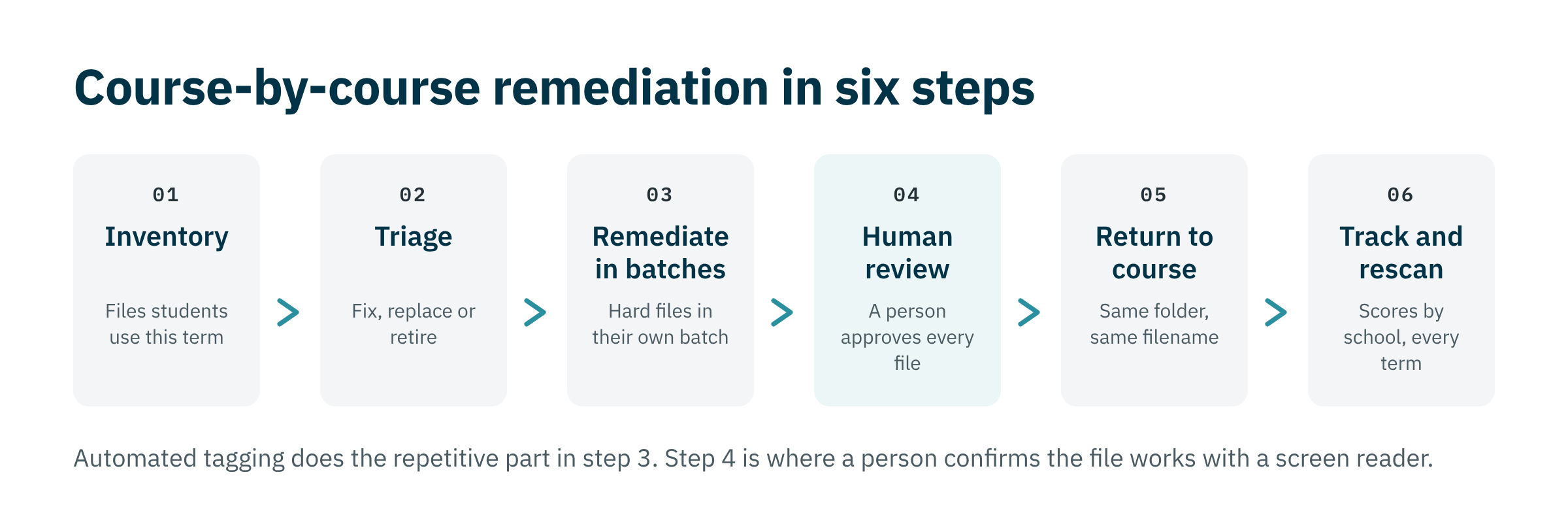
The campuses getting through this are working course by course, in six steps.
1. Inventory What Students Actually Use
Start with the files in live courses, since those are what Title II covers first. Canvas lets an instructor or admin download a course's files in bulk as a zip, and Stanford's Canvas help site walks through it. Your accessibility scanner's export gives you the same list with scores attached. Sort by the courses with the most enrollments and the files that are opened most.
2. Triage Each File
Every file gets one of three decisions. Fix it if it is current and students need it. Replace it if a native accessible version already exists, such as a publisher's HTML chapter or the Word original of a PDF. Retire it if nobody has opened it in a year and it is not needed to participate in the course. Fordham's accessibility team described a version of this at EDUCAUSE 2026: migrating one semester of courses at a time and keeping a repository of remediated objects so a file used in five sections is fixed once.

3. Remediate in Batches
Group the files to fix by course or department and send them through as a batch. In a bulk tool the batch runs file by file, so a batch of 300 PDFs is 300 individual results, each with its own report. Group hard files (scans, equations, complex tables and forms) into their own batch so reviewers know where to spend their time.
4. A Person Reviews and Approves Every File
Automated tagging gets the structure in place. A person confirms that headings nest the way the page reads, that the reading order follows the columns and that alt text says what an image means. Our earlier post, What AI Can't Confirm in a Remediated PDF, lists six checks for this step. Review every file quickly and run all six checks on flagged and high-impact documents.
5. Replace Each File in Course Files
Put the fixed file back by replacing the original instead of adding a new one. Upload it to the same Course Files folder with the same file name and extension, and confirm when Canvas asks whether to replace the existing file; links in the course then open the new version. Afterward, open one page that links to the file and check that the fixed version loads, especially in a copied course.
6. Track Scores and Rescan Each Term
Fordham set an 85% Ally course score as its benchmark and reported three graduate schools fully compliant. Pick a score, report it by school each term, and rescan when courses are copied forward, since copied courses bring old files back.
Try these steps on a batch of your own course PDFs.
Why Do Fixed Files Come Back?
A remediated file only helps once students open it instead of the old one. Three things in Canvas can put the old version back.
Duplicate Uploads
Uploading a fixed PDF straight into a page or assignment adds a second copy to Course Files instead of replacing the first. The old copy stays wherever it was linked, and scanners keep scoring it, so the course score does not move. Chandler-Gilbert Community College's teaching center flags this as a common reason a fixed file still shows up in Panorama.
Copied Courses
A course copy carries its files forward. A file fixed in this term's course stays broken in any course copied from an older one. Instructure has also logged a known issue (RCX-3242): in a course built from an export package, replacing a file does not update the page links that point to it, and students see a preview error.
Sections and Blueprint Courses
The same PDF in five sections is five files. In a Blueprint course, fix the file in the Blueprint and sync, since locked Blueprint content overwrites the copies in associated courses. Files an instructor added only to their own section still need fixing there.
How Long Does Bulk Remediation Take?
It depends on the tool and the share of hard files. Three reference points help with planning.
| Approach | What It Covers | Time |
|---|---|---|
| Manual remediation in Acrobat | One file at a time by a trained specialist | Hours per complex file |
| Scanner plus instructor fixes (UC Irvine) | Nearly 42,000 documents across the campus (UC Irvine) | About seven months, with 300+ consultations and 30+ department visits |
| Bulk remediation with human approval (Montgomery County, MD) | 8,500+ PDFs and 70,000 pages for a county government | About six weeks, against an estimated 3+ years by hand |
The pattern in each row is the same: the fixing is fast once a batch is running, and the planning, triage and review are where the people time goes.
How Does CampusMind Handle Course Files?
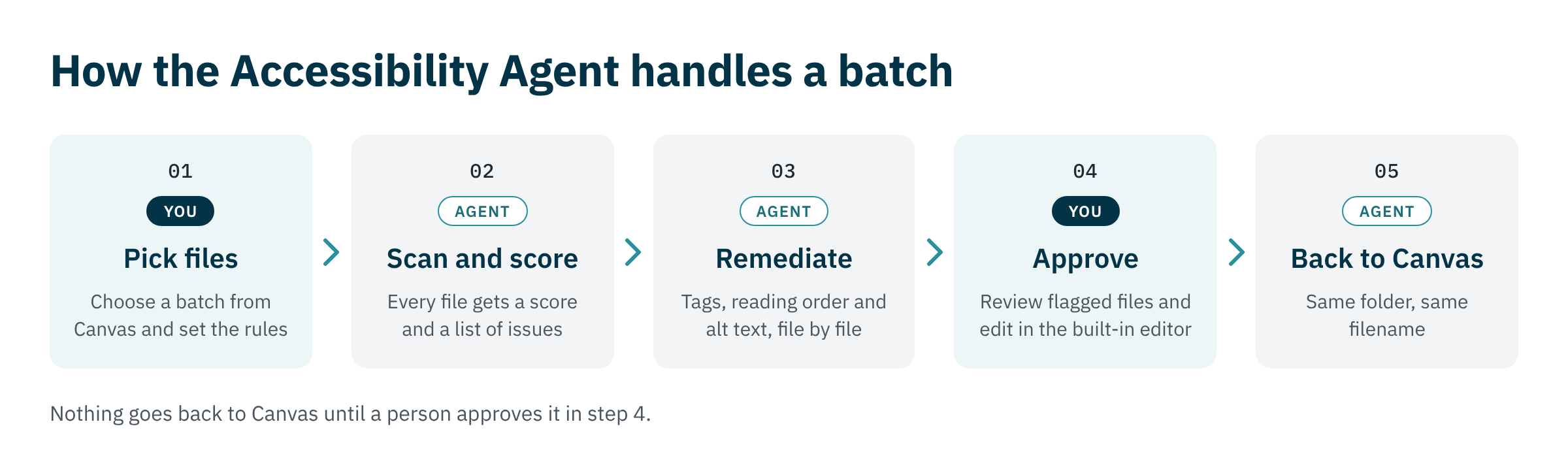
The Accessibility Agent is built for the batch steps above. Canvas is a confirmed integration, so course files come in from Canvas and go back to the same place. Batches run one file at a time, at about a minute per file, with no maximum batch size. Edge cases are flagged for a reviewer, a person approves every file, and your team edits tags and alt text in the built-in editor before the file returns to its course. Reports roll up by department so the accessibility office can show progress across schools.
The Montgomery County project described above ran on the Accessibility Agent.
CampusMind runs in your institution's Azure tenant or is hosted by CampusMind, and campus data never trains models. You can review the security details in our Trust Center.
Send us a batch of PDFs from one course, ideally the hardest ones. We'll send them back remediated, each with a report of what changed.
Terms Worth Knowing
Frequently Asked Questions
April 26, 2027 for public entities with a population of 50,000 or more, and April 26, 2028 for smaller entities and special district governments, under the DOJ's April 2026 interim final rule. The standard is WCAG 2.1 AA.
Yes. The proposed rule had an exception for password-protected course content, and the final rule left it out. Course files have to meet WCAG 2.1 AA.
Usually because the old copy is still in Course Files. Uploading a fixed file into a page creates a second copy instead of replacing the first, and the scanner keeps scoring the original. Replace the file in Course Files and delete any leftover copies.
Upload the fixed file to the same Course Files folder with the same file name and extension, then confirm the replace when Canvas asks. Links to the file then open the new version. In a course copied from an export package, check a page that links to it afterward, since Instructure has a known issue where those links do not update.
Only when you copy from the course where they were fixed. A course copied from an older shell brings the old files with it. Copy forward from the fixed course, and rescan after every copy.
A scanner such as Panorama or Ally scores files and flags issues. A remediation tool fixes the files, ideally in batches with a person approving each result. Most campuses need both.
It depends on the tool. In CampusMind there is no maximum batch size; files run one at a time at about a minute per file, so a 300-file batch finishes in a few hours with each file reported individually.
Yes. The DOJ itself wrote in April 2026 that generative AI “does not yet reliably automate the remediation of inaccessible content at scale.” Automated tagging does the repetitive part, and a person confirms the file works with a screen reader before it goes back up.
Sources
- Federal Register, U.S. Department of Justice, Nondiscrimination on the Basis of Disability; Accessibility of Web Information and Services of State and Local Government Entities (interim final rule) (April 20, 2026)
- Campus Technology, Rhea Kelly, DOJ Extends Deadline for ADA Title II Compliance (April 27, 2026)
- U.S. Department of Justice, Fact sheet on the Title II rule for web content and mobile apps
- UC Irvine Division of Teaching Excellence and Innovation, Megan Linos, A Year in Review, Reflections, and the Road Ahead on UCI's Digital Accessibility Journey (September 25, 2026)
- Chandler-Gilbert Community College Center for Teaching, Learning and Assessment, The Secret Life of Canvas Files
- Stanford University, Bulk download Canvas files
- Everspring, Managing Files in Canvas
- Instructure Community, Open upload and replacing files does not update file IDs copied to a new course (known issue RCX-3242)
- Instructure Community, Blueprint Sync Functionalities
- Fordham University, From Red to Green, poster session at the EDUCAUSE 2026 Annual Conference