What AI Can't Confirm in a Remediated PDF

An accessibility checker can confirm that a remediated PDF has tags, alt text and a reading order. It can't tell whether those make sense to someone using a screen reader. Before an AI-remediated file goes back up, a person should run six checks, from how the tags nest to how the file sounds when it's read aloud. This guide walks through each one, plus the quick checks for problems tags can't fix and how to split the review across your team.
Key Takeaways
- In April 2026, the Department of Justice wrote that generative AI "does not yet reliably automate the remediation of inaccessible content at scale," so a person still confirms each file.
- Automated checkers can't make every call. The PDF Association's Matterhorn Protocol says 47 of the 136 ways a PDF can fail usually need human judgment.
- The check that matters most is moving through the file with a screen reader. NVDA is free, and most desktop screen reader users are on Windows.
- Some problems are in the wording, like directions that depend on color or sight. Tags can't fix those, so the author edits the source file.
- Give every file a quick look before it goes back up, and run all six checks on flagged and high-impact documents.
- Before you choose a tool, pick a batch of your hardest PDFs to test and ask who approves each file.
Why Are Campus Teams Turning to AI Remediation?
Most accessibility teams we met at EDUCAUSE 2026 are small, and their document libraries keep growing. Many already have tools that find problems. What they lack is the people to fix every file.
That's why so many teams are looking at AI remediation. Automated tagging can work through thousands of PDFs and come back with a passing score. The harder question is whether someone using a screen reader can actually use the result.
The Department of Justice has raised the same doubt. In its April 2026 interim final rule on Title II, it wrote that "advanced technology, such as generative AI, does not yet reliably automate the remediation of inaccessible content at scale." The standard is still WCAG 2.1 AA, whatever tool does the work, so the review step is where a team confirms the result.
What Can't an Accessibility Checker Tell You?
Accessibility checkers confirm that things exist: tags, alt text, a title, header cells. They can't tell whether those things make sense.
| An Automated Checker Confirms | A Person Confirms |
|---|---|
| Tags exist | Tags nest the way the page reads |
| A reading order is set | The order matches the page |
| The file passes its automated rules | Someone can get through it with a screen reader |
| Every image has alt text | The alt text says what the image means |
| Tables have header cells | Each cell is read with the right headers |
| Equations are tagged | Equations read correctly out loud |
| The text is tagged | Nothing was lost or changed |
The PDF Association's Matterhorn Protocol, the checklist PDF accessibility checkers use, lists 136 ways a PDF can fail. It says 47 of them usually need human judgment.
Acrobat's own checker leaves two items to a person on every file. Its Full Check marks reading order and color contrast "Needs manual check," and as the University of Michigan explains, that means Acrobat can't verify them itself. Clemson University makes the same point about reading order.
Checkers can also disagree with each other. PAC 2024, a free checker for Windows, tests files against PDF/UA and WCAG rules, while Acrobat runs its own list of checks. A file can pass one and fail the other, and neither can make the calls in the table above.
Some universities now put this in policy. Texas State University's standard for automated remediation says it plainly: "Automated remediation does not constitute certification of accessibility."
Want to see what a person would catch in one of your own files? Upload a PDF, and we'll send it back remediated with a report of what changed.
What Should a Person Check in a Remediated PDF?
Run these six checks before an AI-remediated file goes back up. Each one ends with a quick way to do it.
1. Is the Tag Tree Nested the Way the Page Reads?
Tags are a PDF's hidden outline, and screen readers navigate by them. Headings should step down in order (H1, then H2, then H3). List items belong inside lists, and table cells inside rows.
Automated tagging often guesses structure from how text looks. A big, bold pull quote can come back tagged as a heading, and a sidebar can land in the middle of the main text. A checker sees valid tags either way.
How to check: Open the Tags panel in Acrobat and collapse the tree to its top level. Look for headings that aren't really headings, sections out of order and lines that should be a list.
2. Does the Reading Order Match the Page?
A screen reader reads content in tag order, which can differ from the order you see. Multi-column pages, text boxes, captions and footnotes are where it usually breaks.
A file can have every tag in place and still read across both columns line by line. That's why reading order is one of the checks software leaves to a person.
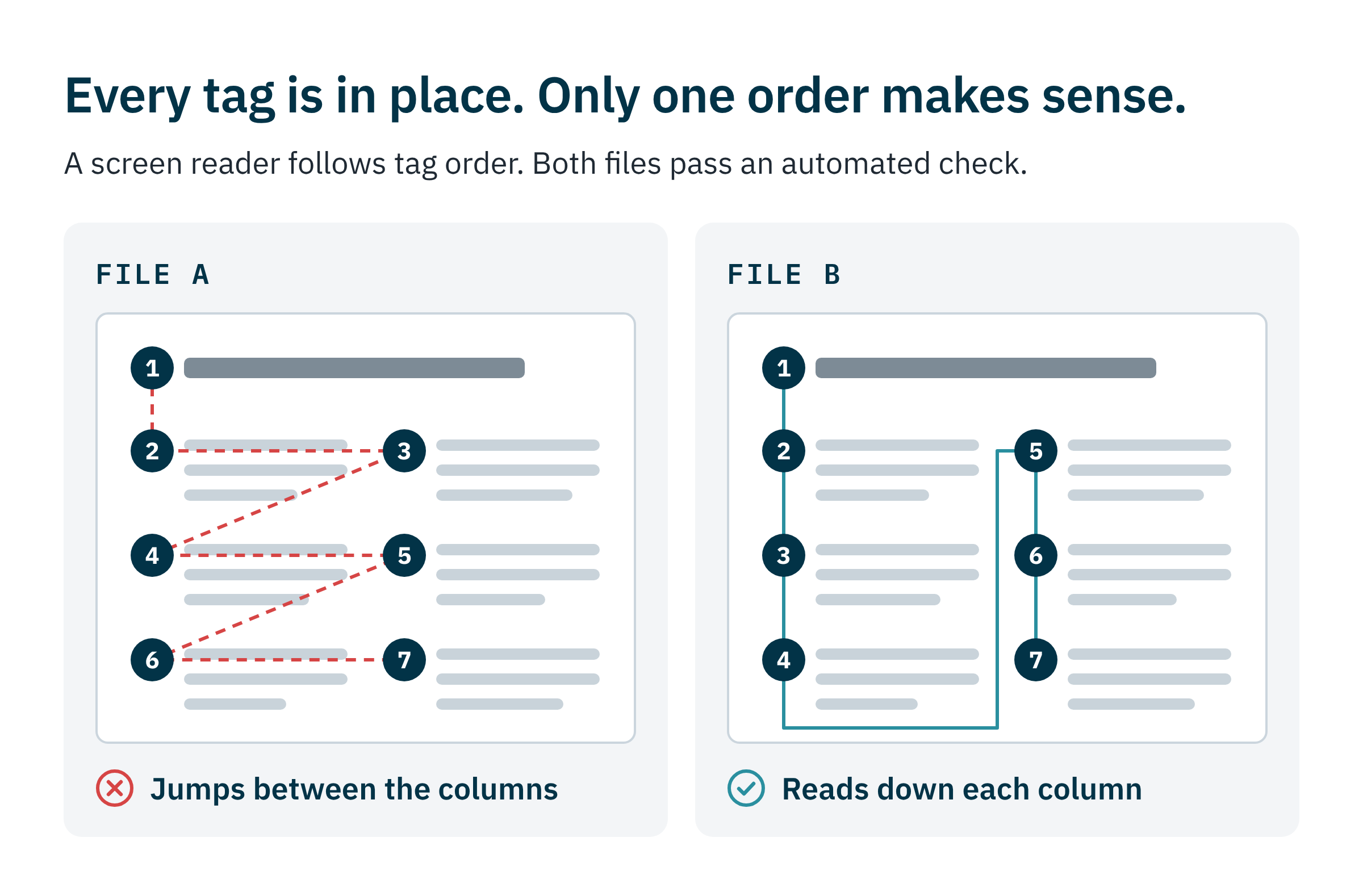
How to check: Read the Tags panel in Acrobat from top to bottom, since that's the order a screen reader follows. Start with multi-column pages and sidebars, then listen to them in check 3.
No Acrobat Pro license? PAC 2024's screen reader preview shows the content in tag order, which makes jumps between columns easy to spot.
3. Can Someone Actually Get Through It With a Screen Reader?
This is the check that matters most, and only a person can run it. Can a listener jump between headings, hear a table's headers and skip what's only there for looks?
Running headers, footers and page numbers should be marked as background so they aren't read aloud on every page. This step is easy to miss.
How to check: NVDA is a free screen reader for Windows, and VoiceOver comes with every Mac. In NVDA, press H to move between headings and T to jump to tables, then listen to a full page at a slow speed. Your experience won't match a practiced user's, so treat it as a first pass and include screen reader users in testing when you can.
Which screen reader should you use? NVDA is a good default, since most desktop screen reader users are on Windows. In WebAIM's 2024 survey of 1,539 respondents, 40.5% named JAWS as their main desktop screen reader, 37.7% named NVDA and 9.7% named VoiceOver. VoiceOver is fine for a first listen on a Mac, and it's worth checking important files with NVDA on Windows too.
| NVDA Key | What It Does |
|---|---|
| H and Shift+H | Next and previous heading |
| NVDA+F7 | Lists the headings and links, so you can check their order and wording |
| T | Next table |
| Ctrl+Alt+arrow keys | Move between table cells and hear the headers |
| K | Next link |
| F | Next form field |
| G | Next graphic, to hear its alt text |
| NVDA+Down arrow | Read from here to the end |
| Ctrl | Stop speech |
The NVDA key is Insert by default. WebAIM's NVDA guide covers the rest of the keys.
4. Does the Alt Text Say What the Image Means?
A screen reader reads alt text out loud. If it only names the image, the listener misses the point.
Context decides what alt text should say. As WebAIM puts it, "This image may need vastly different alternative text depending on how it is used." Software can recognize a bar chart, and the person who knows the course knows why it's there.
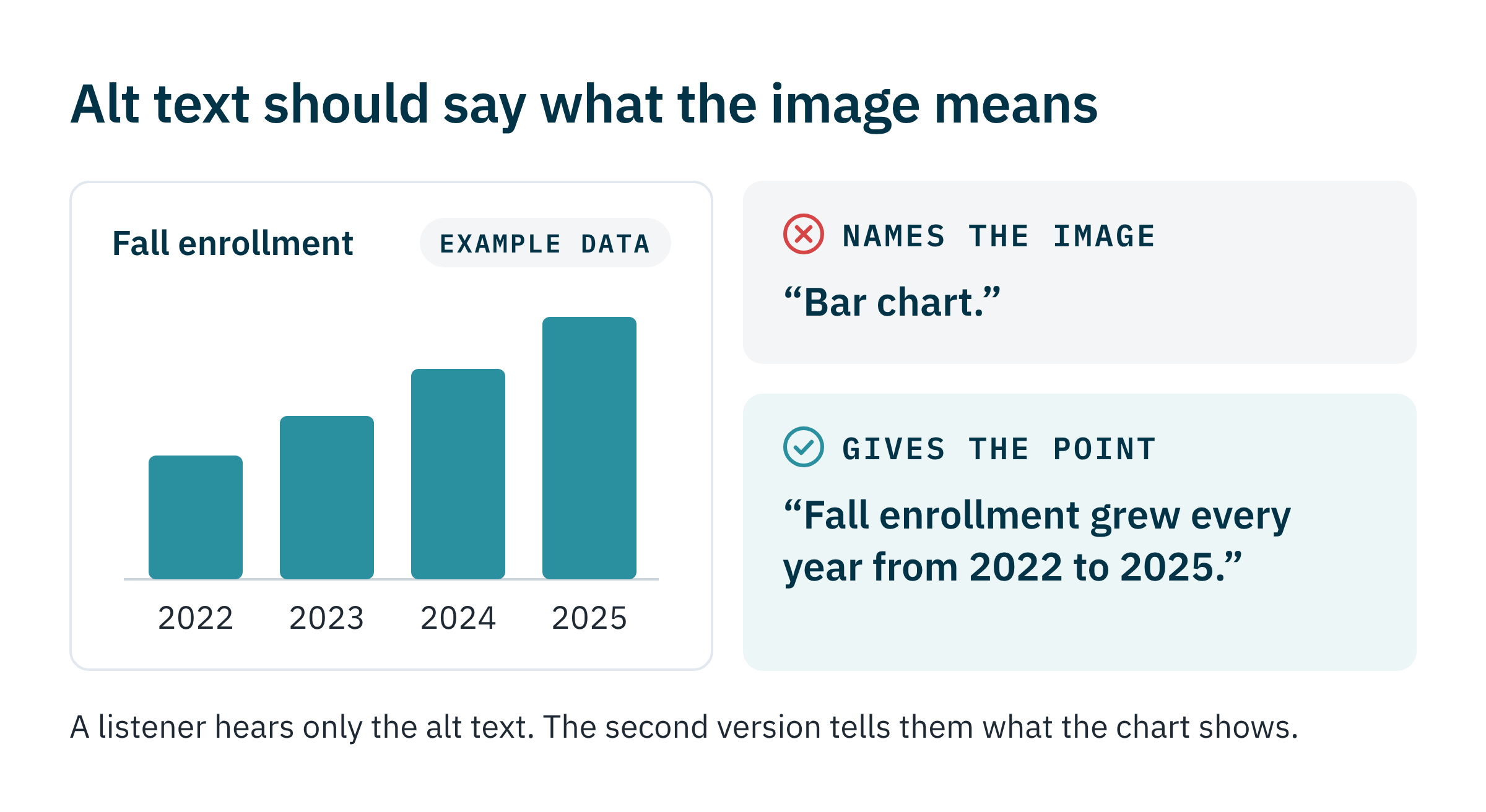
Charts and diagrams often need more than one line. For complex images, the W3C recommends a full text version of the data. Decorative images should be marked so screen readers skip them.
How to check: Read each image's alt text next to the paragraph around it. Ask whether someone who can't see the image would get the same point.
Subject knowledge matters here. In a 2026 Rochester Institute of Technology study, disability services professionals at five higher education institutions wrote alt text for research figures with and without ChatGPT. Experts rated the AI-assisted descriptions higher. The researchers also found that participants with less background in the subject leaned on the AI, and that participants often didn't check its output against the paper the figure came from. Send alt text for course images to the instructor or someone else who knows the material.
5. Do Tables and Equations Read Correctly?
In a data table, each cell should be read with its row and column headers. Merged cells, headers that span two rows and tables used only for layout are where automated tagging tends to slip.
Equations need to be tagged as math (MathML) or given accurate alt text. Screen reader support for math varies, so test with the ones your students use.
How to check: Move through a few cells in the middle of a table and listen for the headers. For math, listen to an equation you know and make sure every symbol is read.
6. Did Anything Get Lost or Changed?
One visitor at our booth put it simply: remediation is only as good as the PDF you start with. Scans, handwritten notes and messy layouts often have to be rebuilt as new pages, and that's where content can slip.
Text recognition can swap look-alike characters (0 and O, 1 and l) or drop a minus sign. Links can break, and form fields can lose their labels.
How to check: Put the original and the remediated file side by side. Check numbers, symbols, footnotes and the last page, then click a few links and tab through any form.
What Quick Checks Catch the Rest?
These take a minute or two per file, and several of them are about the wording. Remediation tools add and fix tags and leave the words alone, so a worksheet that says "circle the answers in red" still says it after remediation. When a quick check turns up a wording problem, the author changes it in the source file.
| Check | What to Look For | WCAG 2.1 |
|---|---|---|
| Title | In Acrobat, File > Properties shows a real title instead of a file name like "Week3_final_v2," and the Initial View tab is set to show it. | 2.4.2 Page Titled |
| Language | The document's language is set, and passages in another language are marked so the screen reader pronounces them correctly. | 3.1.1 Language of Page and 3.1.2 Language of Parts |
| Link text | Each link says where it goes. A screen reader can list every link on a page, and a list of "click here" links tells the listener nothing. | 2.4.4 Link Purpose (In Context) |
| Color | Nothing relies on color alone, like "required fields are in red," and regular text has a contrast ratio of at least 4.5:1 with its background. | 1.4.1 Use of Color and 1.4.3 Contrast (Minimum) |
| Directions | Instructions don't depend on seeing the page. "See the chart on the right" also says which chart. | 1.3.3 Sensory Characteristics |
The last column lists the WCAG 2.1 success criterion behind each check. For contrast, the free WebAIM Contrast Checker takes two colors and gives you the ratio.
Want to see these checks on your own files? Pick a batch of PDFs and try the Accessibility Agent, with your team approving every file.
How Should a Team Run the Review?
The checks above work best with a plan for which files get them and who does the work.
Which PDFs Need the Closest Review?
Some documents come back from automated tagging in good shape, and others need a careful look every time. These are the ones we'd send to a reviewer first, with the checks that catch their usual problems.
| Document | What Tends to Go Wrong | Check First |
|---|---|---|
| Syllabi | Schedule tables with merged cells, and headings that are only bold text | Heading levels and table headers (checks 1 and 5) |
| Slides saved as PDF | Text boxes read out of order, and diagrams whose alt text only names them | Reading order on each slide, then alt text (checks 2 and 4) |
| Scanned readings | Misread characters, handwriting the scan can't read, and running headers read aloud on every page | Compare the text with the original (check 6), then listen to a page (check 3) |
| STEM problem sets | Equations saved as images or broken into stray characters | Listen to each equation (check 5) |
| Fillable forms | Fields without labels, and a tab order that jumps around the page | Tab through every field and listen to its name (check 6) |
| Journal articles and newsletters | Footnotes, captions and sidebars landing in the middle of a paragraph | Reading order across columns (check 2) |
How Much Does a Person Need to Check?
- Sort the work into what AI can help with, what needs expert review and what shouldn't go to AI at all. One EDUCAUSE 2026 poster suggested this filter.
- Give every remediated file a quick look before it goes back up.
- Run all six checks on files the tool flags and on high-impact documents. Texas State's standard gives examples: public service documents, accommodation letters, legal and financial materials, and complex course content.
- Rescan on a schedule. New files arrive every term, and copied courses bring old versions back.
A person approving every file can still keep pace with a large document library. Montgomery County, Maryland, a county government, remediated more than 8,500 PDFs and 70,000 pages in about six weeks with bulk remediation and a person approving each file. It estimated the same work would have taken more than three years by hand.
To plan staffing, time a sample. Review 10 files of each document type from your own library and note the minutes each one takes, since review time varies a lot between a one-page flyer and a 40-page course reader.
Planning a remediation project? Our free guide walks through the federal rules and how to prioritize and budget the work.
What Should You Do When a File Fails a Check?
Where you make the fix decides whether the problem stays fixed. These are the usual cases.
- One file, one problem. Fix the tag, alt text or reading order in your remediation tool's editor (or in Acrobat), then run the automated checker again. A manual edit can break something the checker had already passed.
- The same problem in many files. Look for a shared source, like a syllabus template whose headings are only bold text. Fix the template so new files start out right, then fix the files already made from it.
- A problem in the wording. Color-only meaning, directions that depend on sight and vague link text go back to the author, who edits the source file.
- A poor scan. Text recognition can't recover what it can't read. Retype handwritten notes and faded pages, or find a cleaner copy.
- A signed form. Editing a PDF after it's been digitally signed can invalidate the signature. Fix the blank form, then collect signatures on the new version.
Should you fix the PDF or the source file? If the PDF came from a Word or PowerPoint file you'll edit and export again, fix the source too, or next term's export brings the old problems back. If the source is gone, or the PDF is the final version, remediate the PDF.
Who Should Review What?
No one person is best placed to make every call, so split the review by what each person knows.
| Reviewer | Best Placed to Confirm |
|---|---|
| Accessibility staff | Tag structure, reading order, tables and forms, and the final approval |
| Instructors and content owners | What each image means, whether equations are right, and wording that relies on color or sight |
| Screen reader users | Whether the file is usable from start to finish |
| Trained student workers | Titles, language settings, link text and contrast on routine files |
Setting up review across departments? Talk with our team about how the work can be split on your campus.
How Do You Record a Review?
If someone asks how a file was checked, a short record answers the question. It also saves time the next time the file changes. For each approved file, note:
- Who reviewed it, and when
- Which checker you ran, and its version
- The standards it was checked against, such as WCAG 2.1 AA and PDF/UA
- Which of the checks above you ran, and what you fixed
- Anything you couldn't fix, and who it went to
- Where the approved file now lives
Most of this should come from your remediation tool's report, so the reviewer only adds their notes.
What Should You Ask Before Choosing a Tool?
| Question | Why It Matters | What a Good Answer Includes |
|---|---|---|
| Who approves each file? | Automated remediation doesn't certify a file as accessible, so someone on your team has to sign off. | Tricky spots flagged for a reviewer, and a clear step where your team approves each file. |
| Can our team edit the result? | Reviewers will find things to fix. If the tool has no editor, every fix means exporting to another program. | An editor for tags, alt text and reading order, so reviewers fix problems where they find them. |
| Can we test our hardest files? | Scans, equations, complex tables and forms are where automated remediation tends to slip. | A trial on a batch of your hardest PDFs before you decide. |
| What comes back with each file? | For public colleges, the DOJ's Title II rule requires WCAG 2.1 AA, and PDF/UA is the international standard for accessible PDFs. | A report of what changed and the standards each file was checked against. |
| Where do the files go? | Under FERPA guidance, a school must keep direct control over how a provider uses student records. | Where files are processed and stored, and whether they train AI models. A vendor's HECVAT (the security questionnaire many campuses use) answers much of this, and version 4 added questions about AI. |
How Does CampusMind Handle Review?
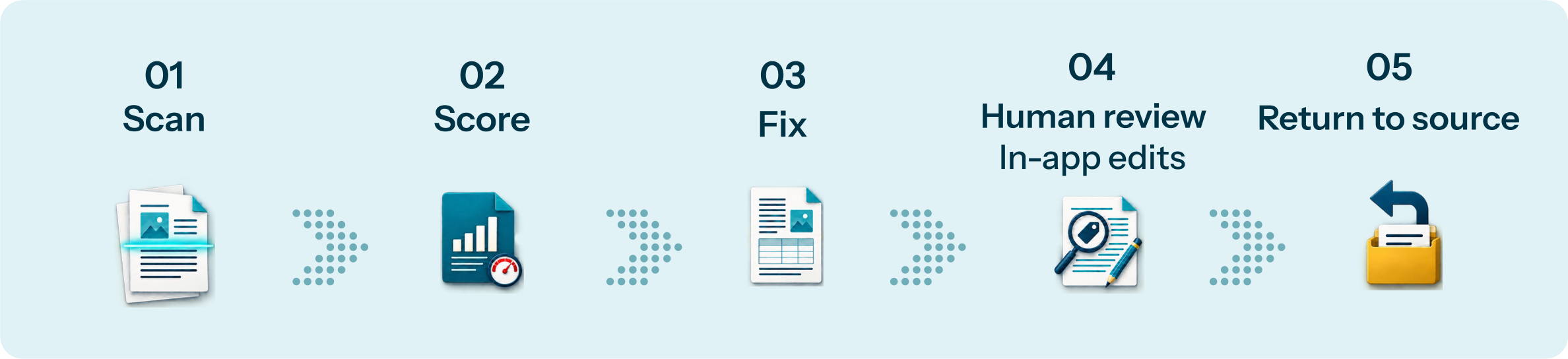
In the Accessibility Agent, automated tagging does the repetitive work and your team stays in charge of every file. Edge cases are flagged first, and a person reviews every file. Your team edits tags and alt text inside CampusMind, approves the file and sends it back to where it came from. Every file comes back with a report of what changed, checked against WCAG 2.1 AA and PDF/UA.
Batches run one file at a time, at about a minute per file. Montgomery County's project, described above, ran on the Accessibility Agent.
CampusMind runs in your institution's Azure tenant or is hosted by CampusMind, and campus data never trains models. You can review the security details in our Trust Center.
Send us a PDF, ideally one of your hardest. We'll send it back remediated, with a report of what changed.
Terms Worth Knowing
Tags
The hidden outline of an accessible PDF. Tags mark each heading, paragraph, list, table and image so a screen reader knows what it is, and they nest into a tag tree.
Artifact
Content marked as background, like running headers, page numbers and decorative lines, so screen readers skip it.
Reading order
The order a screen reader follows, set by the tags. It can differ from the order you see on the page.
Screen reader
Software that reads what's on screen out loud or sends it to a braille display. NVDA, JAWS and VoiceOver are common ones.
Alt text
A short description that a screen reader reads in place of an image.
Contrast ratio
How much text stands out from its background, measured from 1:1 to 21:1. WCAG 2.1 AA asks for at least 4.5:1 for regular text.
Sensory characteristics
Things like shape, color, size and position on the page. WCAG says instructions can't rely on them alone.
MathML
A W3C standard for marking up math so screen readers can read equations correctly.
PDF/UA
The international standard for accessible PDFs, published as ISO 14289.
PDF/UA-2
The newer part of the PDF/UA standard (ISO 14289-2, published in 2024) for PDF 2.0 files. It adds support for MathML.
WCAG 2.1 AA
Level AA of the Web Content Accessibility Guidelines 2.1. The DOJ's ADA Title II rule requires it for public colleges.
Matterhorn Protocol
The PDF Association's checklist for testing a PDF against PDF/UA. It marks which checks software can run and which need a person.
PAC
A free PDF accessibility checker for Windows that tests against PDF/UA and WCAG and includes a screen reader preview.
Frequently Asked Questions
No. A checker confirms that tags, alt text and a reading order exist. It can't tell whether they make sense to someone using a screen reader. The PDF Association's Matterhorn Protocol says 47 of its 136 failure conditions usually need human judgment.
No. Automated tagging can do much of the repetitive work, and a person still needs to review the result. Texas State University's standard says automated remediation doesn't certify a file as accessible.
In its April 2026 interim final rule on Title II, the Department of Justice wrote that "advanced technology, such as generative AI, does not yet reliably automate the remediation of inaccessible content at scale." The standard is still WCAG 2.1 AA, so a person confirms each file whatever tool does the work.
Reading order and color contrast. Acrobat's Full Check marks both "Needs manual check" on every file because it can't verify them itself. A person checks the order in the Tags panel or with a screen reader, and checks contrast with a tool like the WebAIM Contrast Checker.
Each checker runs its own rules. PAC 2024 tests against PDF/UA and WCAG, while Acrobat's checker runs its own list. A pass in one doesn't guarantee a pass in the other, and neither can confirm the calls that need human judgment.
NVDA is a good default. It's free, and most desktop screen reader users are on Windows. In WebAIM's 2024 survey, 40.5% named JAWS as their main desktop screen reader, 37.7% named NVDA and 9.7% named VoiceOver. Math support varies between screen readers, so test equations with the ones your students use, and include screen reader users in testing when you can.
Someone who knows why the image is there, usually the instructor or content owner. In a 2026 Rochester Institute of Technology study, disability services staff with less background in a subject relied more heavily on AI drafts.
No. Every file should get a quick look before it goes back up, including the quick checks for title, language, links and color. Run all six checks on files the tool flags and on high-impact documents, such as accommodation letters, legal and financial materials, and complex course content.
Fix the source when you'll edit and export it again, so the next version starts out accessible. Remediate the PDF when the source is gone or the PDF is final, like a signed form or a published report.
Who reviewed the file and when, the checker and standards used, which checks were run, what was fixed and anything sent back to the author. Most of it should come from your remediation tool's report.
For public colleges, the DOJ's ADA Title II rule requires WCAG 2.1 AA. PDF/UA (ISO 14289) is the international standard for accessible PDFs. Ask your vendor for a report that shows what each file was checked against.
Plan to rescan on a schedule. New files arrive every term, and copied courses can bring old versions back.
Sources
- PDF Association, Matterhorn Protocol 1.02
- Clemson University, Accessibility check in Adobe Acrobat
- University of Michigan, Adobe Acrobat PDF Accessibility Checker: Needs Manual Check
- PDF Association, PAC (PDF Accessibility Checker)
- PDF Association, ISO 14289-2 (PDF/UA-2)
- Texas State University, Standards for automated document remediation
- WebAIM, Using NVDA to Evaluate Web Accessibility
- WebAIM, Screen Reader User Survey #10 Results (February 2024)
- WebAIM, Alternative Text
- WebAIM, Contrast Checker
- Raees, Iwamoto, Papangelis, Heard and Tigwell, Rochester Institute of Technology, How University Disability Services Professionals Write Image Descriptions for HCI Figures Using Generative AI (arXiv, February 2026)
- W3C Web Accessibility Initiative, Images Tutorial
- W3C, Web Content Accessibility Guidelines (WCAG) 2.1
- U.S. Department of Justice, Fact sheet on the Title II rule for web content and mobile apps
- U.S. Department of Justice, Extension of Compliance Dates for Nondiscrimination on the Basis of Disability; Accessibility of Web Information and Services of State and Local Government Entities (Federal Register, April 20, 2026)
- ISO, ISO 14289-1:2014 (PDF/UA-1)
- U.S. Department of Education, Protecting Student Privacy While Using Online Educational Services: Requirements and Best Practices (February 2014)
- Campus Technology, Educause HECVAT vendor assessment tool gets an upgrade (February 11, 2025)
- EDUCAUSE 2026 Annual Conference, Beyond the Score: Where AI Can Help with Accessibility Remediation Under Title II